Classifying images
Quick ML: machine learning on your iPhone and iPad
3 min read
Published Sep 6 2026
Guide Sections
Guide Comments
Quick ML can train an image classifier from a folder of photos sorted into subfolders, one per class, and then classify new photos on the device. The whole flow is free from import to prediction. The only Pro feature nearby is exporting the model.
Importing a folder of images
Arrange the photos so that the folder holds one subfolder per class, each holding that class's images. JPEG, PNG, HEIC, GIF, BMP and TIFF all count. Then, in a project, tap Data and Choose a Folder. A ZIP of the same shape also works through Choose a File, which is how a Kaggle image dataset gets in.
A classifier needs at least two classes, and each class needs at least ten images. If the folder you picked is one level too high, with train and test folders inside it, the app says so and asks you to pick one of those.
The Data screen for an image project is titled Images and shows the class and image counts, a chart of images per class, and a link to Samples & Average Images.
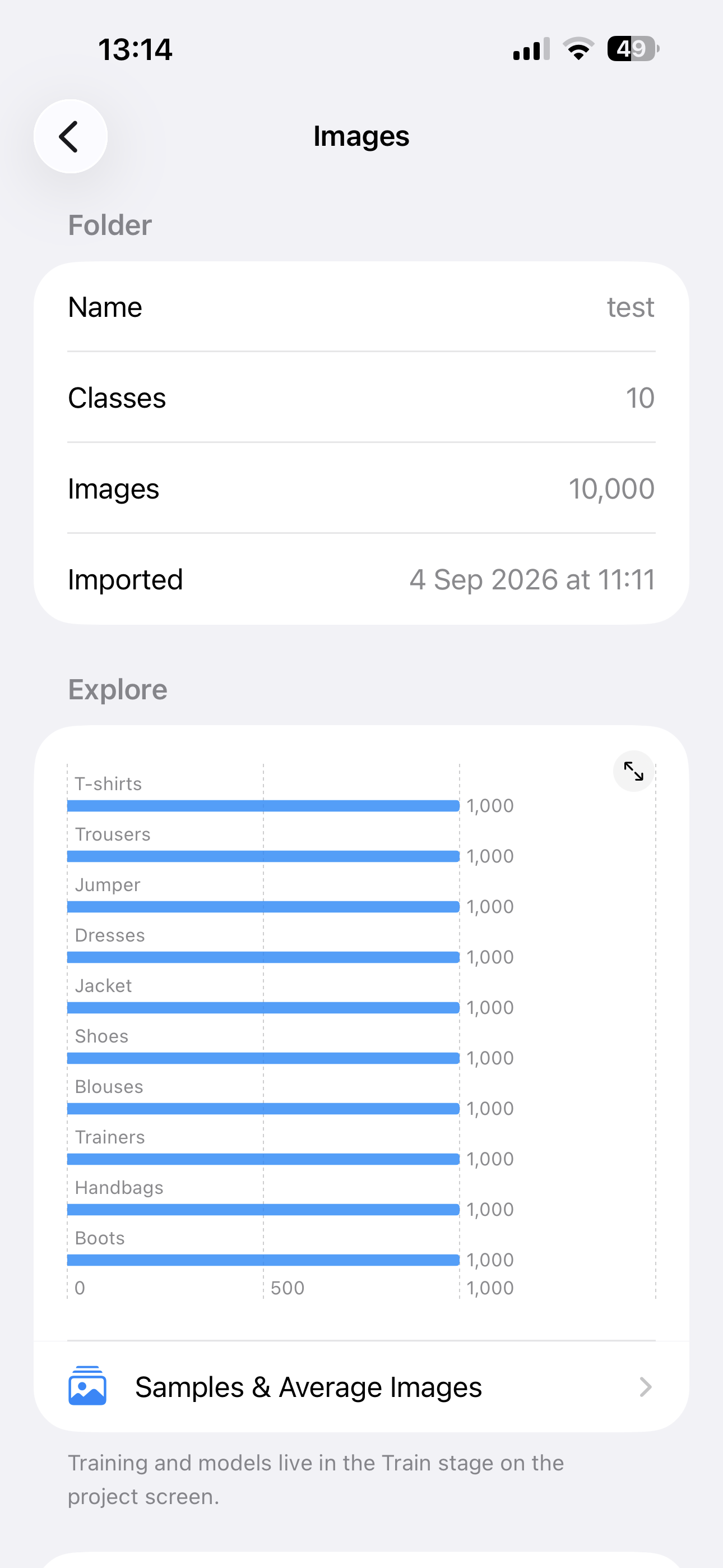
The Images screen for an image project.
Average images
The screen behind that link is titled Visual EDA, and it does something I find oddly satisfying. Every image in a class, up to a hundred, is resized and averaged pixel by pixel. Structure that survives the averaging is what the whole class has in common. A Compare Two Classes control shows the pixel-by-pixel difference between two average images, with black where the classes agree and brighter colour where they differ, which is exactly the signal a classifier leans on. You can also rename a class's display name here without touching the folder.
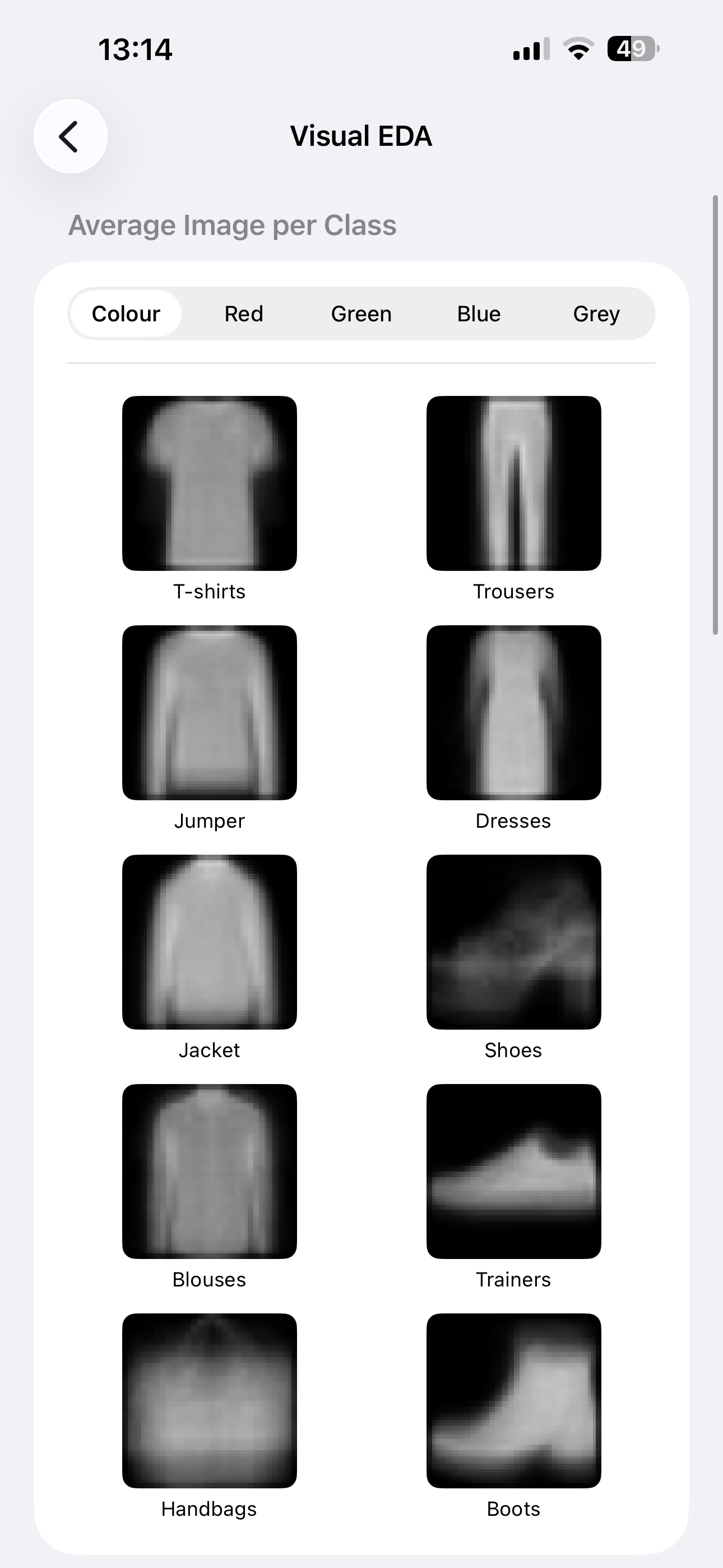
Visual EDA: the average image per class.
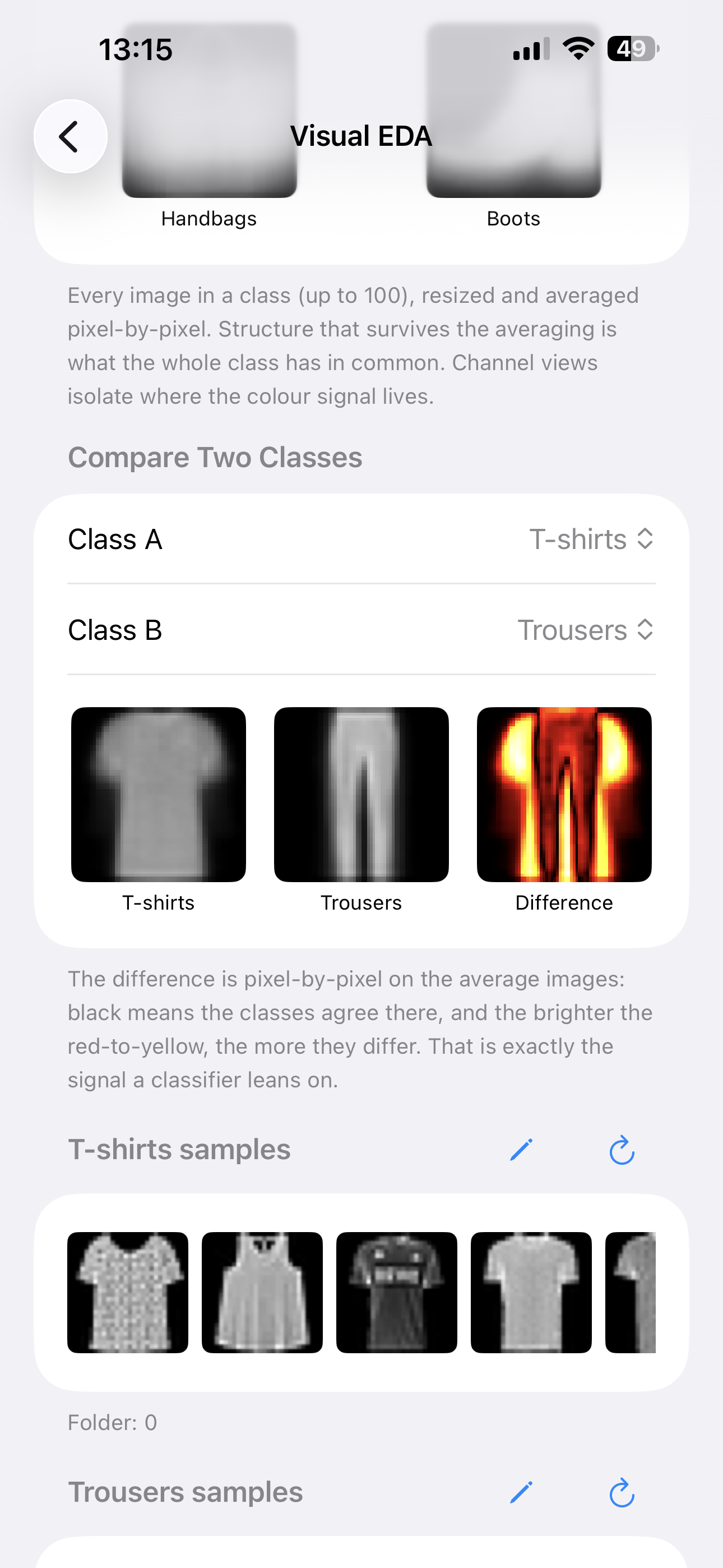
Comparing two classes: black where they agree, bright where they differ.
Training
Tap Train on the project screen, then Train Image Classifier. Training uses transfer learning: Apple's scene feature extractor with a light classification head on top, entirely on the device. The slow part is extracting features, and the progress message tells you so.
Two honest limits. Image training cannot be stopped once started, and the screen says so before you begin. And very large folders are sampled down to a device-dependent cap, somewhere between two and fifteen thousand images, because iOS limits how many images a process can hold in flight at once. The message tells you when it happens.
The accuracy number is a real test score
Create ML draws its own validation split and tunes against it, so the number it hands back is the one the training loop was steering by. Quick ML instead holds back one in five photos of every class before Create ML sees anything, trains on the rest, and scores the finished model on the photos it never saw. The model page labels that number Test accuracy and says exactly how it was measured. A model trained on an older version of the app shows the Create ML validation score instead, labelled as such, with a note that it flatters the model.
Classifying a photo
The project's third stage is Classify a Photo instead of Predict. It offers Choose From Photos and Choose a File. There is no camera capture, so take the photo first. The result lists every class with its confidence, the winner in bold.
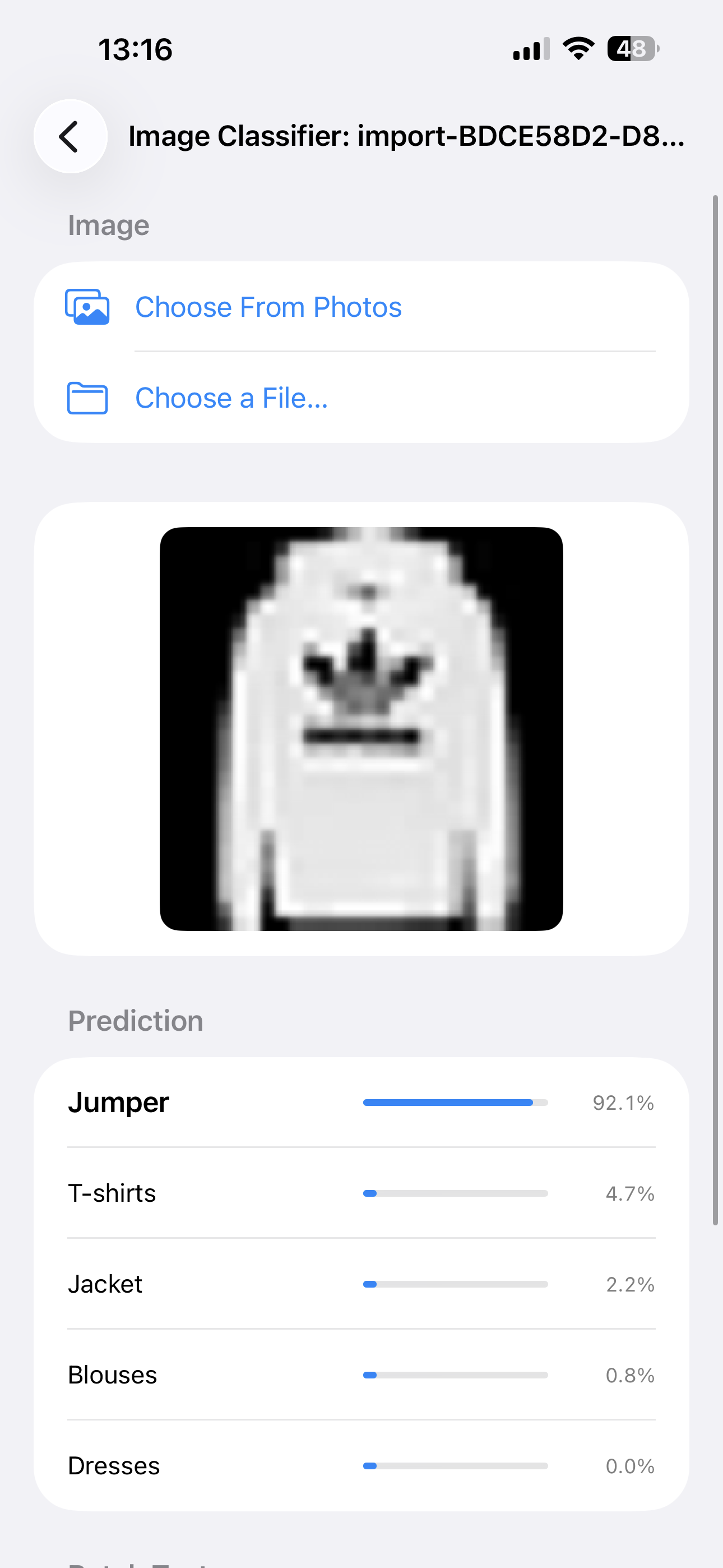
Classify a Photo, with the confidence in every class.
A Batch Test section lets you pick up to fifty images at once. You get every prediction, the spread across classes, and a per-photo view of the confidence in every class, not just the winner.
Image folders stay put
Unlike tables, image folders do not sync between your devices, because they are big. The trained image models do sync, and a model whose training folder has been deleted keeps its class names.