Cleaning data with the recipe
Quick ML: machine learning on your iPhone and iPad
4 min read
Published Sep 6 2026
Guide Sections
Guide Comments
This is the chapter that explains how Quick ML thinks, and it is the reason the app can sync a ten-million-row project between devices in a few kilobytes.
The recipe
A dataset in Quick ML is two things: the original file, which is never changed, and an ordered list of steps applied to it. The app calls that list the Recipe. Fill a missing value, filter some rows, tidy a date column, add a calculated column, edit a row: every one of those is a step. Only the steps and the source file sync. Each device rebuilds its own working copy by replaying the steps on the file.
Two consequences follow, and both are good news:
- Every step can be undone. The Recipe section at the bottom of the Data screen lists them in order. Swipe one away and the data is rebuilt from the original file without it. If the rebuild fails, nothing is deleted, so a half-synced file cannot leave you with half a recipe.
- The same file plus the same recipe always gives the same data. That is what makes the Python export in chapter 14 possible: each step has a pandas equivalent.
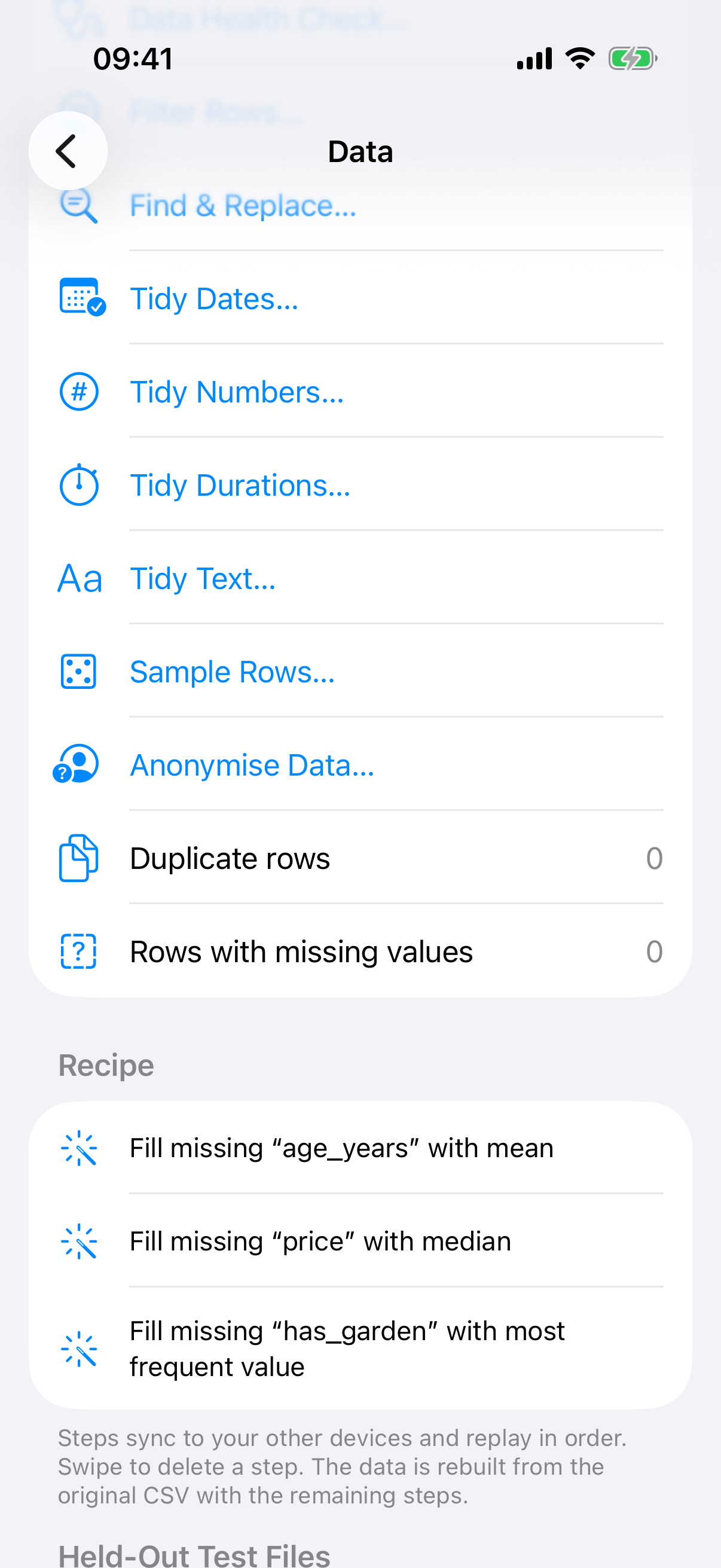
The cleaning menu and a recipe with three steps.
One small exception worth knowing: renaming a column, dropping a column, changing its type, reordering columns and colour tags are metadata rather than steps. That is why dropping a column and restoring it is instant.
Start with the health check
The Dataset Cleaning section on the Data screen begins with Data Health Check. It profiles every column for types, missing values, duplicates, outliers, skew, correlations and things that look like personal data, then proposes a list of steps with a plain English reason under each.
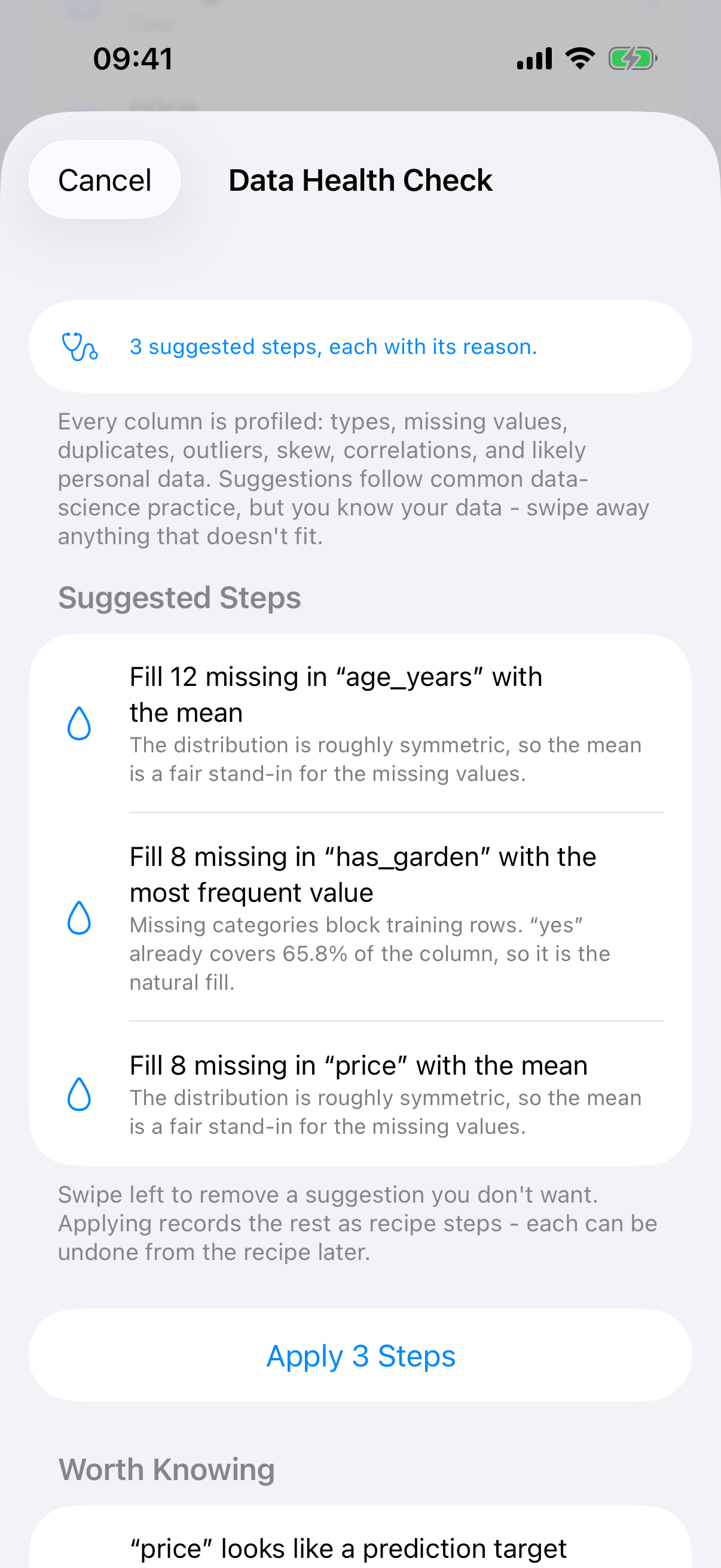
The Data Health Check with its suggested steps.
Swipe away any suggestion you disagree with and tap Apply. The steps land in the recipe one by one, so each can be undone later on its own. Below the suggestions, a Worth Knowing section lists observations that are not one-tap fixes, such as a column that might make a good target or a transform worth trying at training time.
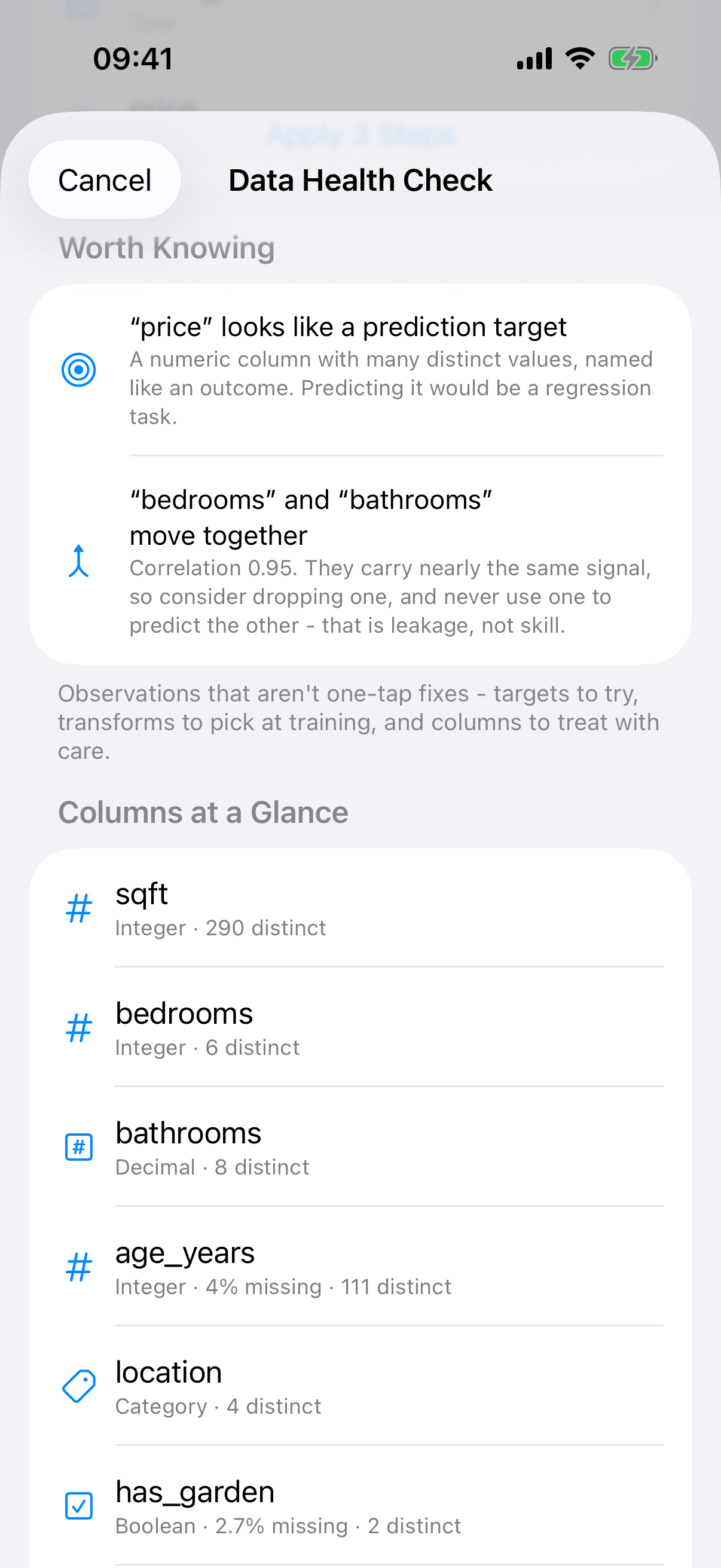
The Worth Knowing section: observations that are not one-tap fixes.
The cleaning menu
The rest of the Dataset Cleaning section, in order:
- Filter Rows keeps only rows that match a condition. A live count shows how many rows would survive, dimmed while it is still recalculating so you never mistake a stale number for the answer.
- Find & Replace replaces whole values or text within values in one column. Leave the replacement empty to blank them.
- Tidy Dates rewrites dates missing a leading zero or written in a second format to match the rest of the column, and the sheet tells you which way round it read the column.
- Tidy Numbers turns 300,000,000, 23.6%, £1,234 and (500) into plain numbers so charts and models can read them.
- Tidy Durations turns 1:23.636 into 83.636 seconds. The sheet warns you to check they really are lengths of time, because a column of clock times like 12:30 converts too, into 750 seconds, which is almost certainly not what you wanted.
- Tidy Text trims stray spaces and collapses repeated ones, with an optional case change. " York", "York " and "york" count as three different values everywhere in the app, and nothing on screen shows you why, so this sheet quotes its before-and-after values with the spaces visible.
- Sample Rows keeps a random sample of a size you choose, with the random seed stored in the step so every device keeps exactly the same rows.
- Anonymise Data scans for personal data and offers replacements. The scan is free; applying the steps is Pro. Chapter 7 covers it.
Beneath those, two live tallies show the number of duplicate rows and rows with missing values, each with a one-tap button to remove them.
Editing a single row
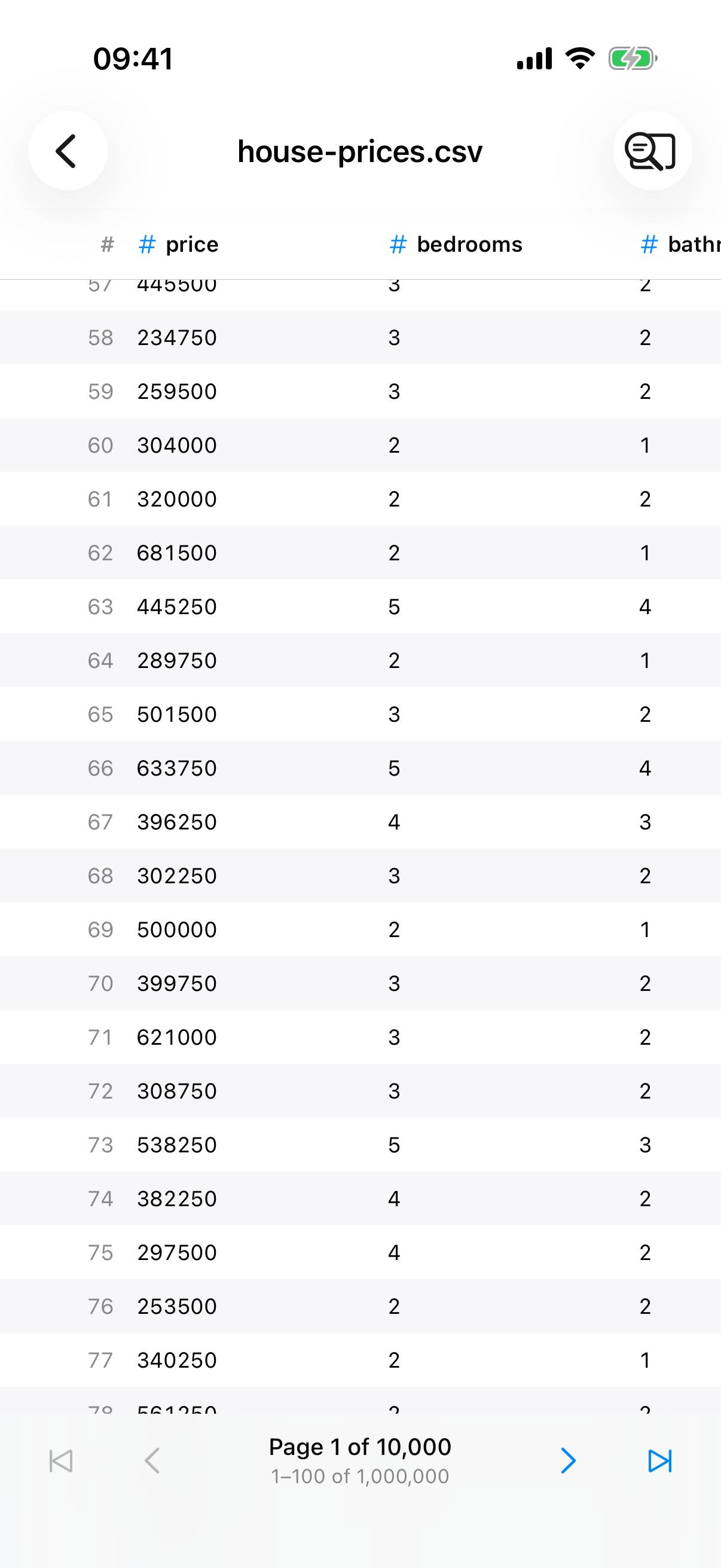
The data table. Tap a row to open it as a record.
Tap View Data to open the table, then tap any row to open it as a record. Tap Edit, change the values, and tap Save. The change is recorded as one recipe step, with the row's old values quoted in the step's description. Remove Row at the bottom does what it says, also as a step.
A row edit checks it is editing the right row
A row step remembers the row by position and by a fingerprint of its exact values. If an earlier step changes and the row no longer matches, the replay refuses and tells you what it found rather than quietly editing the wrong row.
Getting the cleaned data out
Export Cleaned CSV on the Data screen writes the table as it is right now, recipe applied and dropped columns excluded, and hands it to the share sheet. It is free, and the app's own gating rules pin it that way: exporting your own cleaned data must never become a paid feature.
Everything in this chapter is free. The only padlocks on these screens are on appending files, lookup columns, refreshing, and applying anonymisation.