Comparing models
Quick ML: machine learning on your iPhone and iPad
2 min read
Published Sep 6 2026
Guide Sections
Guide Comments
Once a project has two or more trained models, a Compare Models row appears on the Train screen. It is a Pro feature. Its job is to put the models predicting the same thing side by side and be honest about whether the comparison is fair.
How models are grouped
Models are grouped by task and then by target column, with a header such as "Predicting price - Regression" or "Predicting result - Classification". Clustering and image models do not appear, because there is no shared metric to rank them on. Two models with the same name are numbered so the charts can tell them apart.
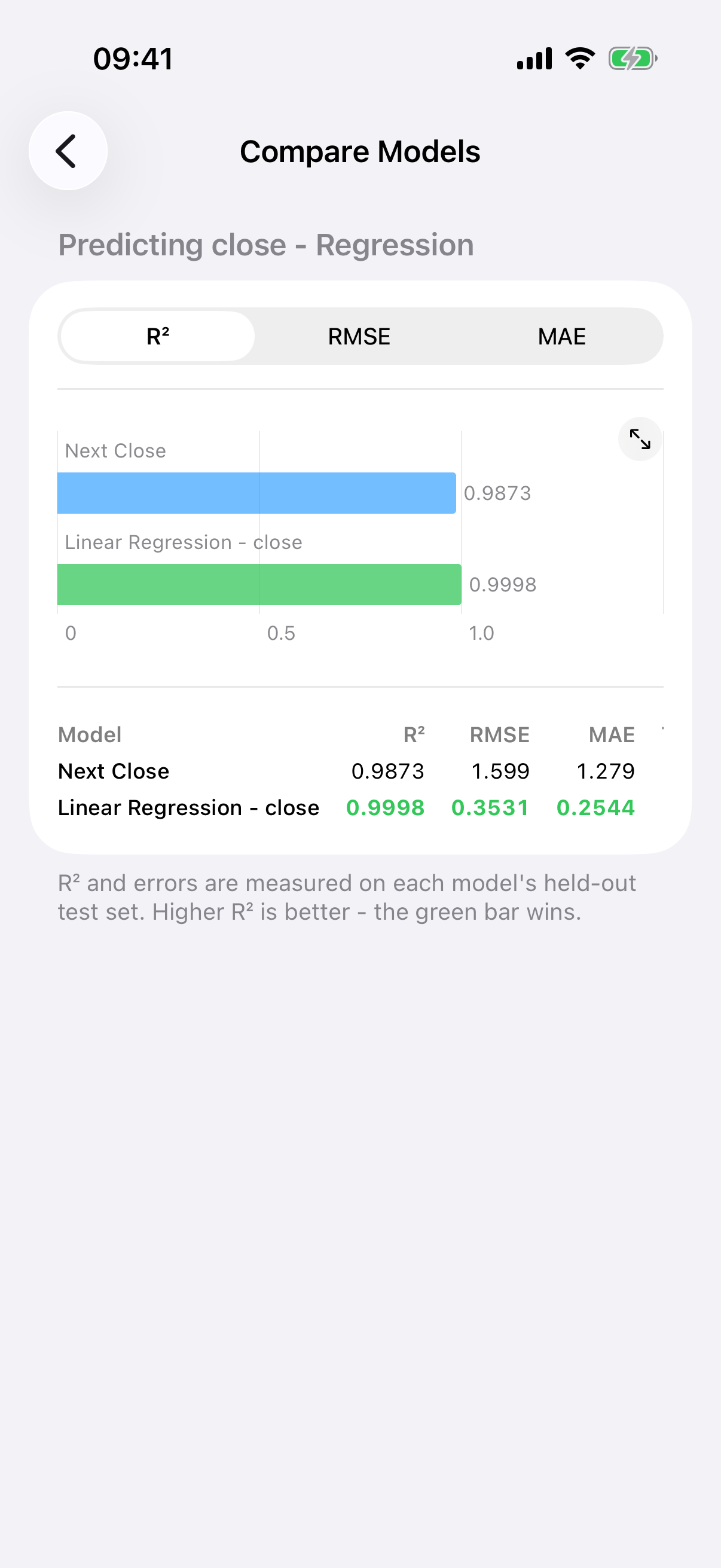
Compare Models with the winning bar in green.
What is compared
For a regression group, a Metric control switches between R squared, RMSE and MAE. A bar chart shows every model with the winner in green and each bar annotated with its value, then a table lists all three metrics and the number of test rows, with the best cell in each column highlighted.
For a classification group, the metrics are accuracy, macro F1 and macro AUC. Precision, recall and F1 are the macro figures, calculated from each model's stored confusion matrix, so a model imported from another device joins in properly. A Compute ROC Curves button overlays every model's curve for one class at a time, with the area under each in the legend.
The honest footer
The most important thing on the screen is the sentence at the bottom. When every model in a group used the same seed and the same split, it reads: "Same seed and split: every model is evaluated on the identical held-out test set. Macro scores treat every class equally, so they punish models that ignore rare classes."
When they did not, it reads: "These models use different seeds or splits, so their test sets differ. Comparisons are indicative only."
The app will not quietly rank models that were never scored on the same rows. If you want a clean comparison, train the candidates with the same seed and training share, which is what the defaults give you if you leave them alone.
Retrain to keep versions comparable
Every model page has a Retrain on Current Data button that reruns the exact configuration and records the result as the next version. After you add cleaning steps or refresh the data, retrain the candidates before comparing them, so they are all looking at the same table.