Importing from Kaggle and PostgreSQL
Quick ML: machine learning on your iPhone and iPad
3 min read
Published Sep 6 2026
Guide Sections
Guide Comments
Two more doors into the app, both part of Quick ML Pro. Kaggle is the world's largest pile of practice datasets, and PostgreSQL is where a lot of real data lives.
Kaggle
You need a Kaggle API key first. On kaggle.com go to Settings, then API, then Create New Token. That downloads a small file called kaggle.json containing your username and key.
In Quick ML, open Settings from the gear at the top left of the project list, find the Kaggle section, and enter both values. Tap Save Credentials. They are stored in the device's Keychain and never synced, so you will do this once per device. If you skip this step, the import sheet will simply tell you it needs a key and offer to open Settings.
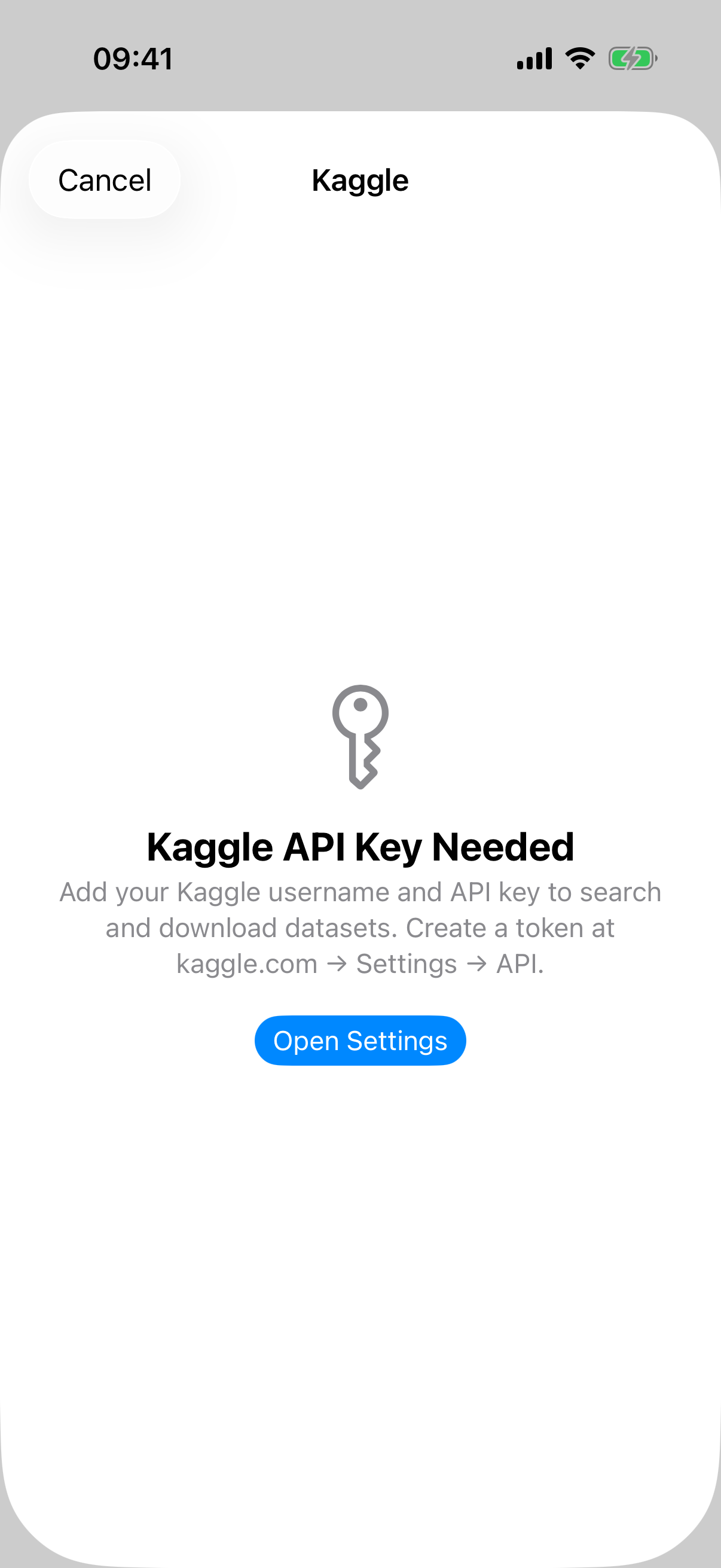
The Kaggle sheet before credentials are added.
Now, in a project, tap Data then Import From Kaggle. Type a search and tap Search. Each result shows the dataset title, its owner and name, its size and its download count. Tap one to expand its file list, then either tap an individual file or tap Download Everything & Review to fetch the whole dataset and choose from it on the What to Import? sheet.
Two things to know:
- The search and the file list only show CSV and parquet files. That is what the app can import, so a dataset that is all JSON or images will look sparse. Download Everything & Review will still surface image folders, which is how you get a Kaggle image dataset into the image classifier.
- Once a project came from Kaggle, the dataset's other files stay within reach. Appending a file, adding lookup columns and adding a held-out test file all offer From the Kaggle Dataset as a choice, so a dataset that ships a train.csv and a test.csv needs no downloading by hand.
PostgreSQL
Tap Data then Import From PostgreSQL. The form has three sections.
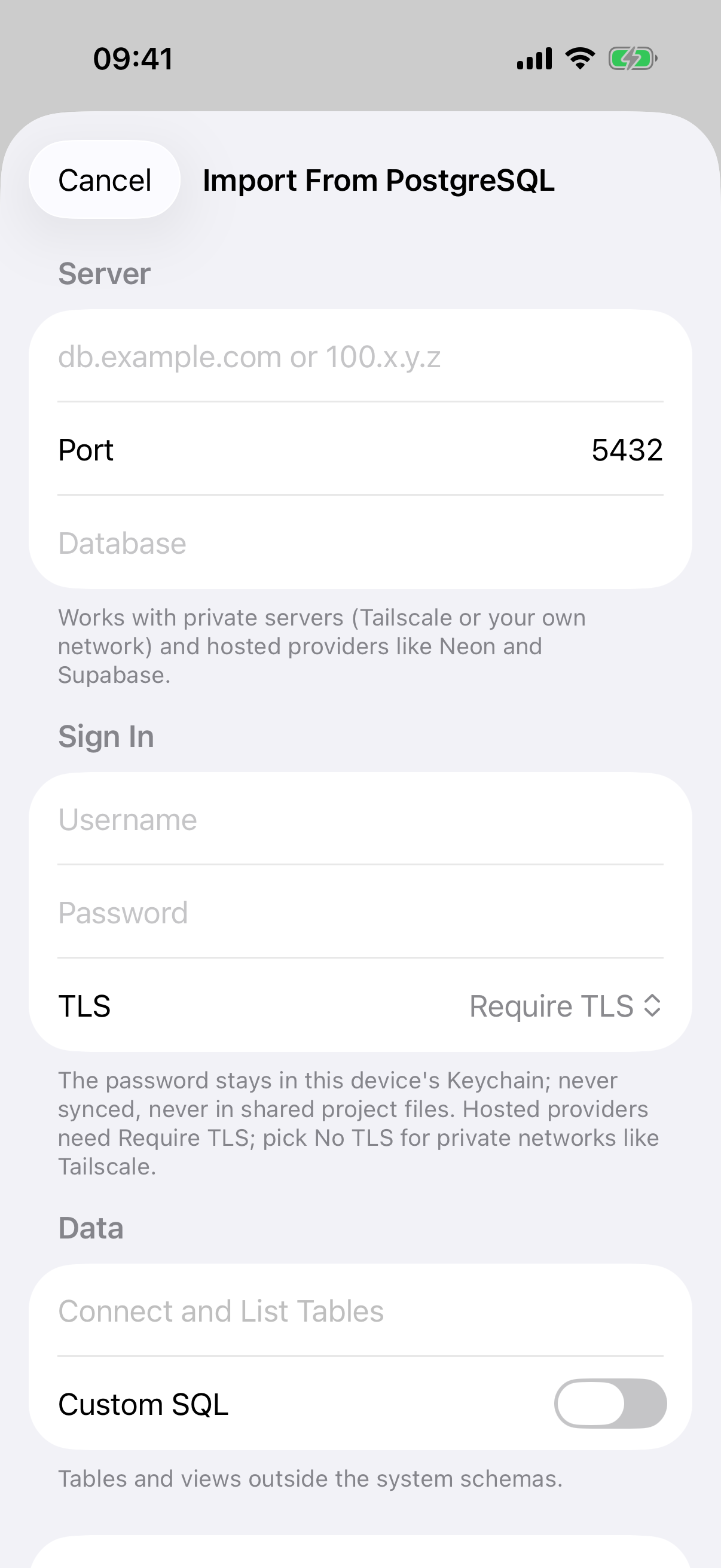
The Import From PostgreSQL form.
Server takes the host, the port (5432 is filled in for you) and the database name. It works with private servers on your own network or over Tailscale, and with hosted providers such as Neon and Supabase.
Sign In takes a username and password, plus a TLS choice: Require TLS, Prefer TLS, or No TLS. Require TLS is the default and is what hosted providers need. No TLS is for private networks where the traffic never leaves your own kit. The password goes into the Keychain on this device and is never synced or shared.
Data is where you tap Connect and List Tables. On success it reports how many tables it found and fills a Table picker with every table and view outside the system schemas. If you would rather write the query yourself, switch on Custom SQL and type any SELECT.
Tap Import. A live row counter ticks up in the button as rows stream in. The dataset is named after the table, and the project list shows it with a small SQL badge.
Only fetch what changed
With Custom SQL you can include {last_sync} in the WHERE clause, for example WHERE updated_at > '{last_sync}'. The first import fetches everything. Each refresh after that fetches only rows changed since the previous refresh, and the app switches the refresh mode to Append New for you.
The Postgres connection is the one place Quick ML uses a third-party library, the open source PostgresNIO driver, and the About screen credits it. Everything else in the app is built on Apple's own frameworks.