Importing from web pages and APIs
Quick ML: machine learning on your iPhone and iPad
4 min read
Published Sep 6 2026
Guide Sections
Guide Comments
If you can see a table in a browser, there is a fair chance Quick ML can turn it into a dataset. This chapter covers the Import From the Web button, which needs Quick ML Pro.
Three modes
At the top of the sheet is a picker with three modes: Data or API, GraphQL and Web page. Switching between them keeps whatever address, headers and sign-in details you have already typed, so an experiment in the wrong mode costs nothing.
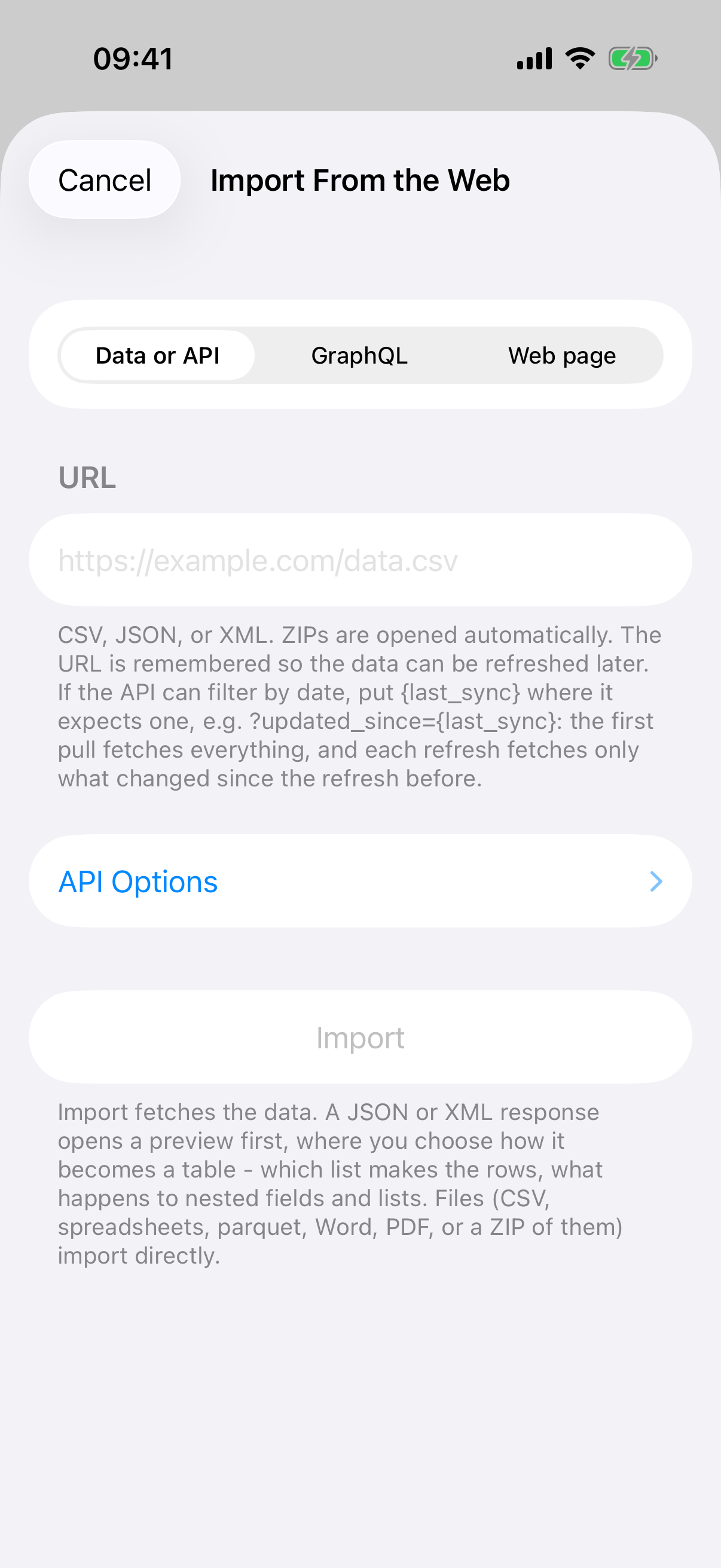
Import From the Web in Data or API mode.
Web page mode
Paste the address of a page with a table on it and tap Import. The app fetches the page and looks for tables. One table opens straight into the mapping screen; several bring up a Which Table? chooser showing each table's caption, its size and its first few column names.
Two honest limits are worth knowing before you start:
- The page's JavaScript is never run. Quick ML reads the page exactly as the site sends it. A page that fills itself in after it opens has nothing to read, and the app tells you so. If the site has a separate address that returns the data itself, import that in Data or API mode instead.
- Only https addresses are accepted, apart from servers on your own network.
Pages that split their results across numbered pages are handled. The mapping screen has a Pagination section, and the friendliest option in it is Point at the next page link. It lists the links on the page with the likely pager links ranked to the top, you tap the one marked 2, and the app works out the pattern and walks the rest.
Data or API mode
This mode takes a direct address for a CSV, a JSON or XML response, or a file. A CSV, spreadsheet, parquet file, Word document, PDF or ZIP imports straight away. JSON and XML open the mapping screen, described below.
Below the address there is a disclosure row called API Options. Inside it:
- Request Headers. Extra headers sent with every request, for things like an API key header or an Accept header asking for XML. Headers that look like keys stay on your devices and never travel in a shared project.
- Authorization. None, a bearer token you paste in (with a Remember for this host toggle that keeps it in the Keychain), or Get a token automatically, which is an OAuth2 client credentials sign-in that fetches a fresh token whenever the old one expires.
- Pagination. Off, Follow "next" links, or Page parameter. The page parameter option sends page=1&limit=50, then page=2, and so on until a page comes back empty. You can cap the number of pages and add a random pause between them so a long import looks less like a robot.
If the API can filter by date, put the placeholder {last_sync} where it expects one. The first import fetches everything, and every refresh afterwards fetches only what changed since the last one. Chapter 5 has more on refreshing.
GraphQL mode
Type the endpoint, the query and optionally a JSON object of variables. The query is saved with the dataset so every refresh asks exactly the same question, and cursor-based paging is set up on the mapping screen by pointing at the cursor field in the response.
The mapping screen
JSON, XML, GraphQL and web pages all end up on a screen titled Map The Response. It shows the response as a tree, and you build the table by tapping.
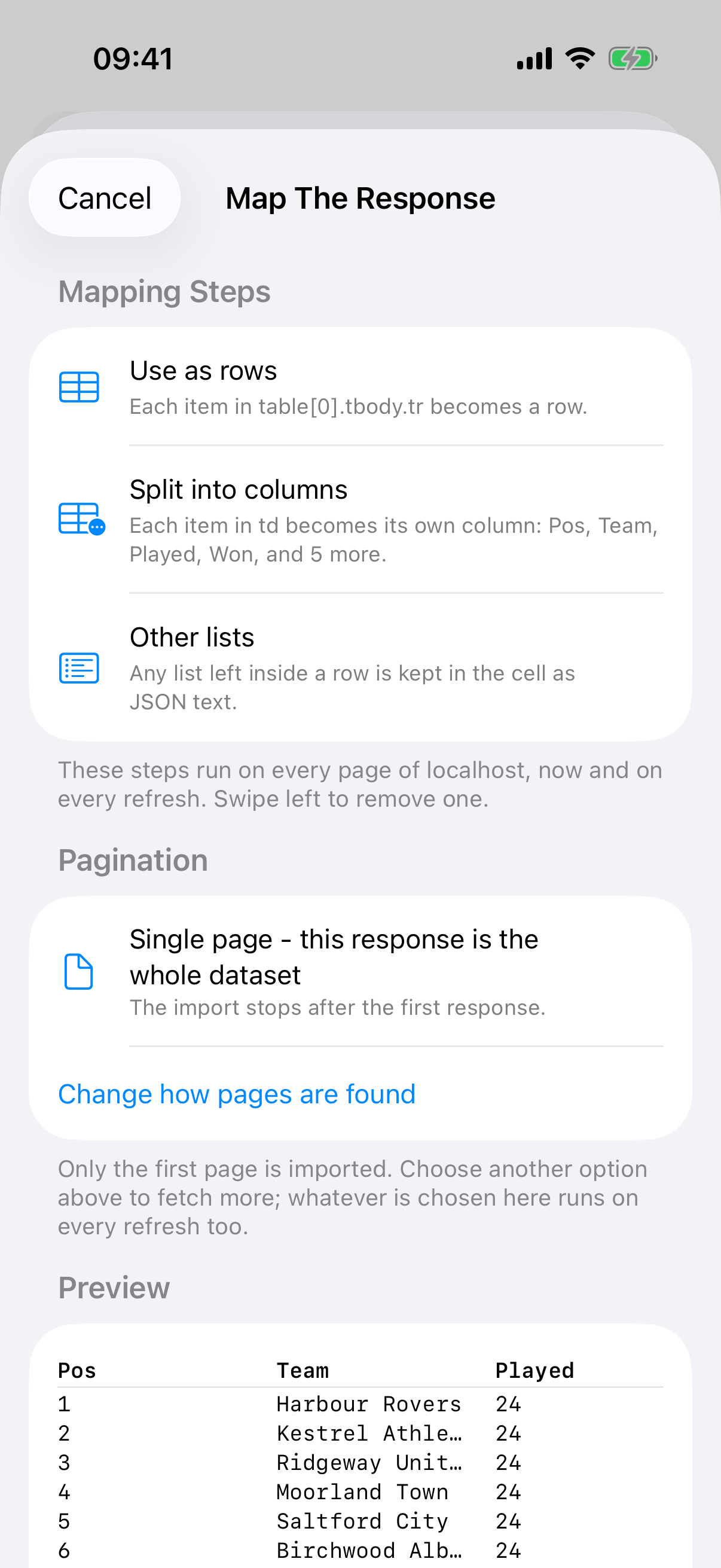
The mapping screen: steps, pagination and a live preview.
The essentials:
- Tap the button beside a list to say Use as rows. That list becomes your rows.
- Nested groups of fields can be flattened into columns, and a list inside a row can be expanded into extra rows, kept as JSON text, counted, or joined with commas.
- A live Preview shows the resulting table from this page of the response, with the column and row counts.
- Tap Import With These Steps. The steps are saved with the dataset, so a refresh flattens the response the same way every time.
The app guesses common pagination fields for you, looking for names like next, next_url, cursor, has_more and total_pages at the top of the response and one level down.
If a site turns you away
Some sites refuse requests that do not look like a browser. Add a User-Agent header under API Options. A descriptive value naming the app and a contact address is the honest thing to send, and it usually works better than imitating a browser.
Local JSON and XML files
One bonus that does not need Pro: a JSON or XML file picked with Choose a File goes through the same mapping screen, titled Map The File. So if you have an export from an app or a database sitting in Files, you can shape it into a table for free.