Reports, exports and sharing
Quick ML: machine learning on your iPhone and iPad
4 min read
Published Sep 6 2026
Guide Sections
Guide Comments
This chapter gathers up the ways of getting things out of Quick ML: a PDF of the whole project, the cleaned data as a CSV, the model as a Core ML file, the pipeline as Python, and the project itself as a file you can send to someone else. It ends with how syncing between your own devices works.
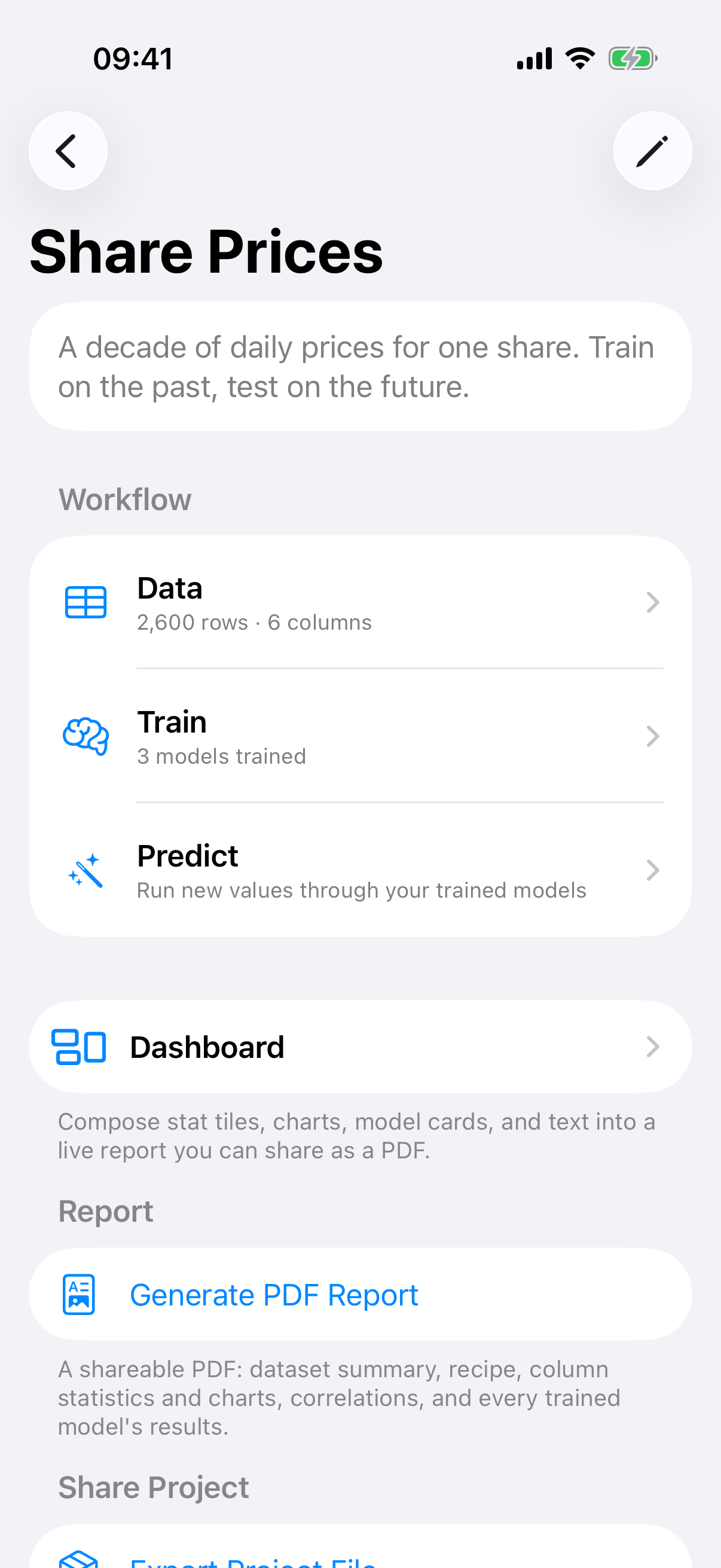
The project screen with the Dashboard row, the Report section and Share Project.
The PDF report
On the project screen, the Report section has a Generate PDF Report button. It is free. The report runs through an overview page with the project's facts, the numbered cleaning recipe and a headline per model; a correlations page when there is a matrix; a page of column blocks, two to a page, each with its statistics and a chart; and then a page per model with its performance, confusion matrix, classification report, feature importance and clusters.
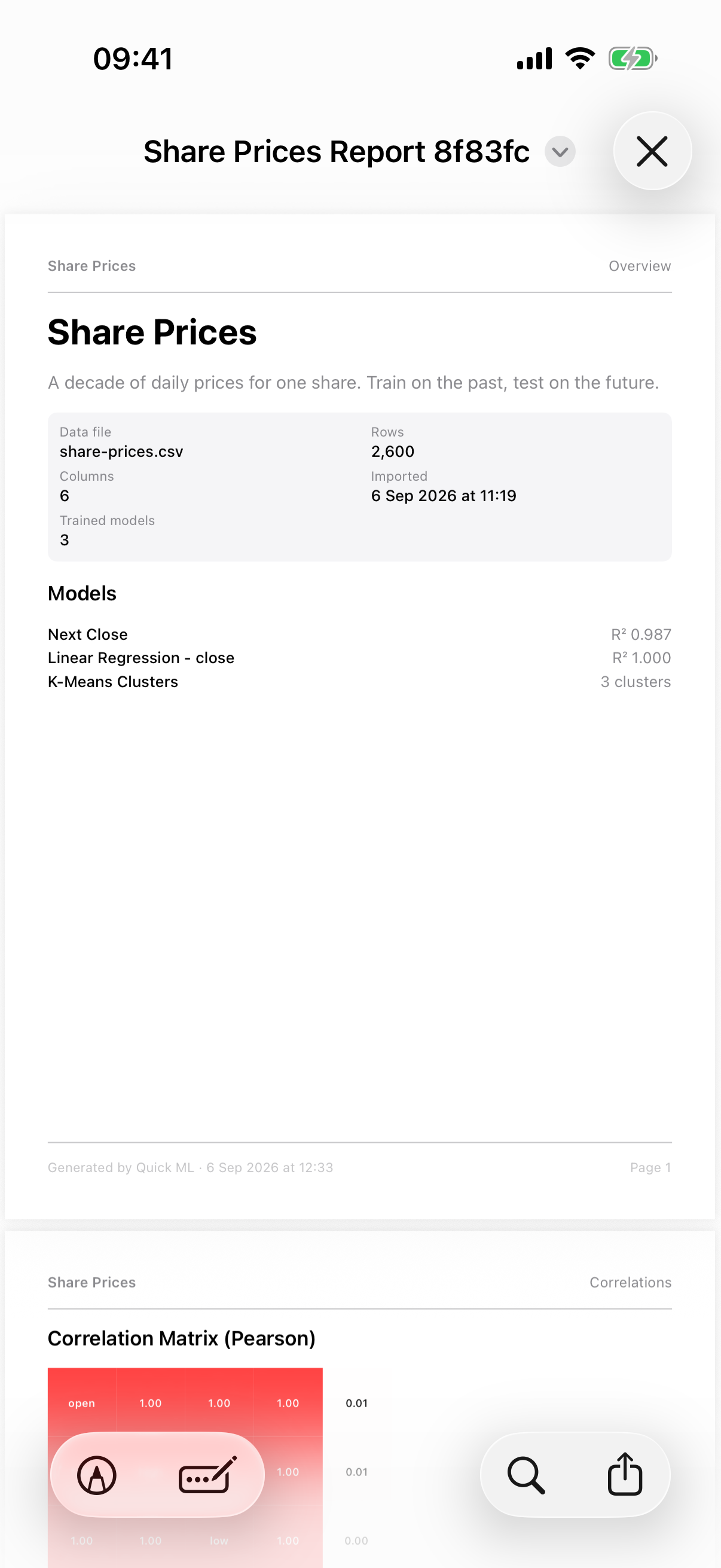
The PDF report.
Once generated, the buttons become View Report, Share PDF Report and Regenerate Report. It is A4, always rendered in light mode, and every page carries the project name and the generation date.
The cleaned CSV
On the Data screen, Export Cleaned CSV writes the table as it stands, recipe applied, dropped columns excluded. Free, and pinned free by the app's own rules.
Core ML export
At the bottom of a model's page, Export Model (.mlmodel) hands you the trained model in Core ML format, ready to drop into an Xcode project or any Core ML tool. Clustering models export as JSON instead. This is a Pro feature. The row only appears once the model file is on this device, so a model trained on your other device waits a minute for iCloud.
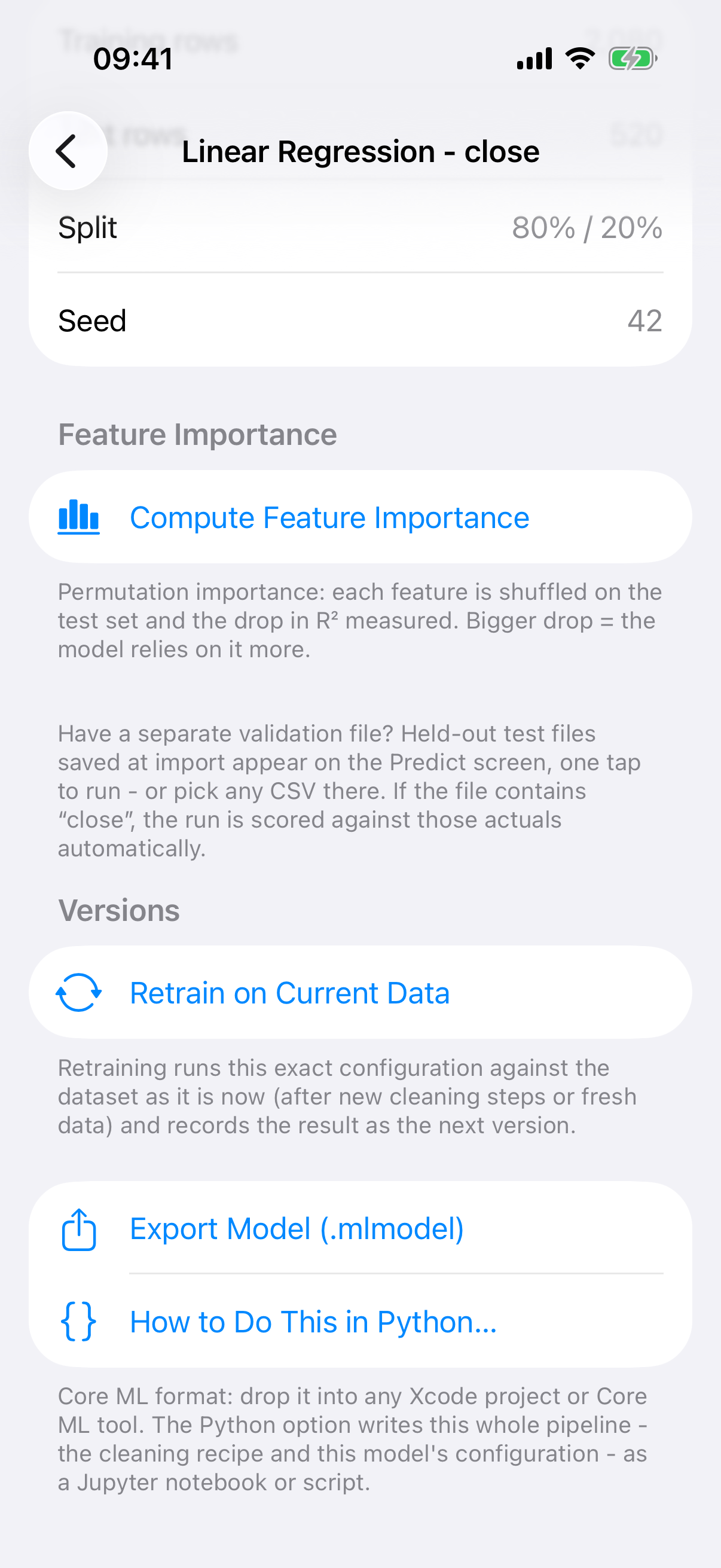
The bottom of a model page: retrain, export and Python.
How to Do This in Python
Two places have a button called How to Do This in Python. On the Data screen it writes the recipe; on a model's page it writes the recipe and the model. Either way you get a Jupyter notebook: one explained cell per step, using pandas and scikit-learn, starting with how to load or fetch the same data your project uses.
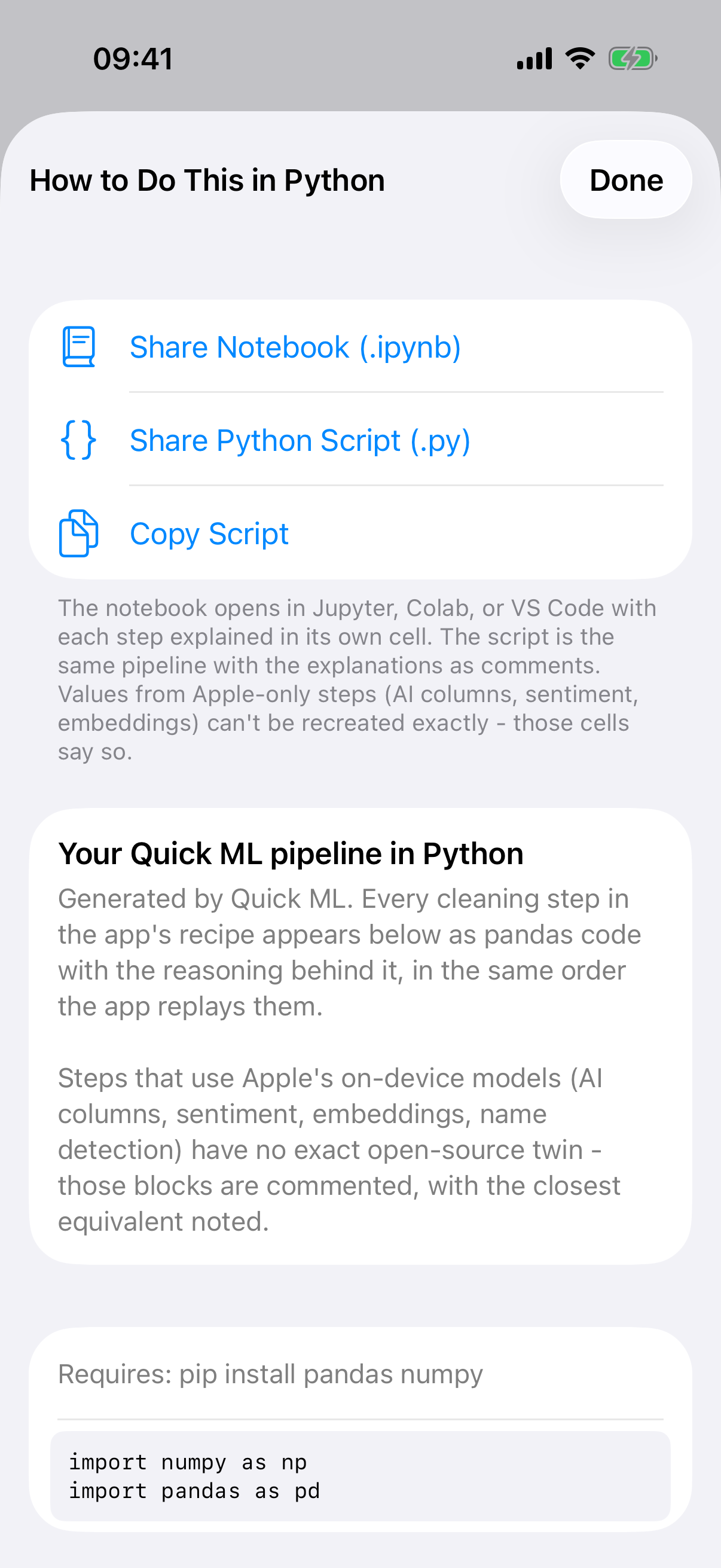
How to Do This in Python.
The whole notebook is readable on screen for free, every cell, syntax-highlighted and selectable. The three buttons that let you take it with you, Share Notebook (.ipynb), Share Python Script (.py) and Copy Script, are Pro.
Where Python cannot follow
Steps built on Apple's on-device models, such as AI columns, sentiment scores and meaning columns, have no exact open source twin. Those cells carry the closest equivalent and say plainly that the values will differ. The train and test rows also land differently even with the same seed, because pandas shuffles differently.
Sharing a whole project
The Share Project section on the project screen packages the project as a single .quickmlproj file. It is a Pro feature at both ends: exporting needs Pro, and so does importing.
The file carries the import recipe, the cleaning recipe, every trained model and their prediction forms. It carries no data. The person you send it to opens it in Quick ML and their Data screen shows a Connect button naming the source. They reconnect with their own credentials, or pick their own copy of the file, and the shared recipe replays on it. Any step that cannot be applied, because its data was not shared, is reported rather than skipped silently. Keys, tokens and passwords never travel in the file.
Syncing between your own devices
Syncing is free and automatic through your iCloud account. Projects, recipes, settings and trained models sync through iCloud; the source files travel through the app's iCloud Drive folder. Each device rebuilds its own working copy from the source plus the recipe, so a dataset arriving on a new device shows a Rebuild Now button rather than appearing instantly populated.
Three things to know:
- Image folders do not sync. They are big, so they stay on the device that imported them. The trained image models do sync.
- A file imported while iCloud Drive is unavailable stays on that device until iCloud is back, and the dataset says so.
- Update every device before editing a project on the newest one. A source set up on a newer version of the app refuses to refresh on an older one rather than guessing, and it tells you why.