Heatmap
Seaborn basics
2 min read
Published Oct 7 2025, updated Aug 17 2026
Guide Sections
Guide Comments
seaborn.heatmap() creates a colour-coded matrix (grid) to visualise two-dimensional data.
Each cell’s colour represents the value in that position — making it ideal for:
- Correlation matrices
- Pivot tables
- Confusion matrices
- Any 2D numerical array or DataFrame
Syntax:
sns.heatmap( data, *, vmin=None, vmax=None, cmap=None, center=None, robust=False, annot=False, fmt=".2g", annot_kws=None, linewidths=0, linecolor="white", cbar=True, cbar_kws=None, square=False, xticklabels=True, yticklabels=True, mask=None, ax=None, **kwargs)Parameters:
data= 2D dataset (DataFrame, array, or matrix)vmin,vmax= Value range for colour scalingcmap= Colour map (e.g., "viridis", "coolwarm", "magma")center= Value where colourmap is centered (useful for diverging data)annot= Annotate cells with numeric valuesfmt= Format string for annotations (e.g., ".1f")linewidths,linecolor= Control grid lines between cellscbar= Show/hide colour barcbar_kws= Arguments for colour bar customisationsquare= Make cells square-shapedxticklabels,yticklabels= Show or hide tick labelsmask= Boolean mask to hide specific cells
Basic example
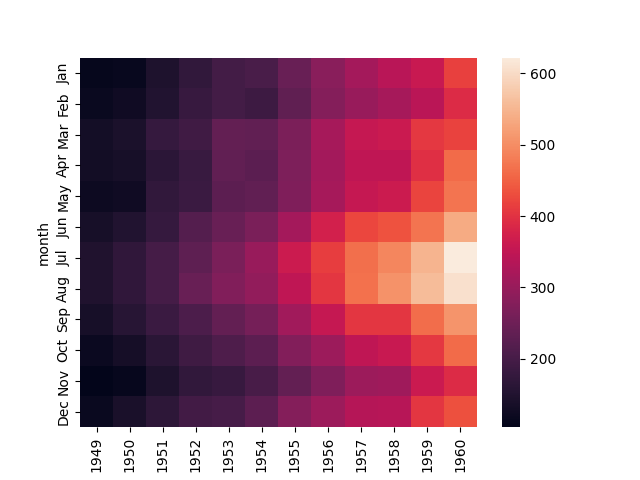
import seaborn as snsimport matplotlib.pyplot as pltdata = sns.load_dataset("flights").pivot(index="month", columns="year", values="passengers")sns.heatmap(data)plt.show()Creates a heatmap of passengers per month per year. Brighter colours indicate higher values.
Add annotations
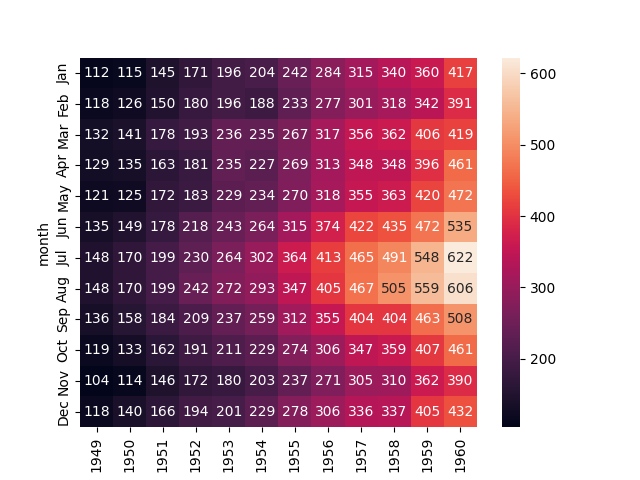
import seaborn as snsimport matplotlib.pyplot as pltdata = sns.load_dataset("flights").pivot(index="month", columns="year", values="passengers")sns.heatmap(data, annot=True, fmt=".0f")plt.show()Displays each cell’s numeric value inside the heatmap. fmt controls the text formatting (here, integer).
Change colour palette
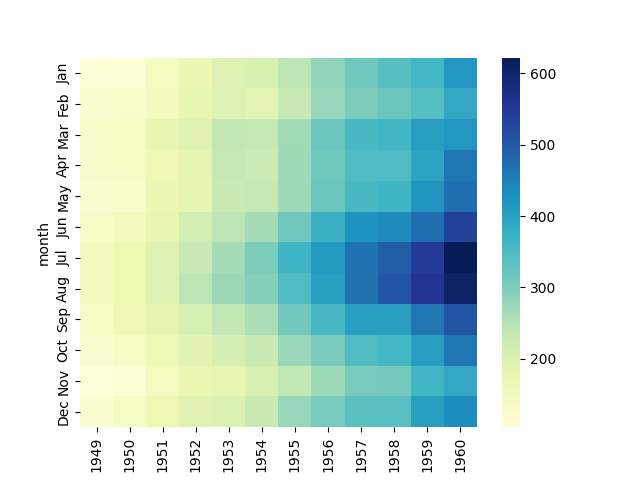
import seaborn as snsimport matplotlib.pyplot as pltdata = sns.load_dataset("flights").pivot(index="month", columns="year", values="passengers")sns.heatmap(data, cmap="YlGnBu") # Yellow-Green-Blueplt.show()Colour map options include:
"viridis"(default)"coolwarm""magma""cividis""crest","flare","icefire", etc.
Try sns.color_palette() to preview available palettes.
Add lines between cells
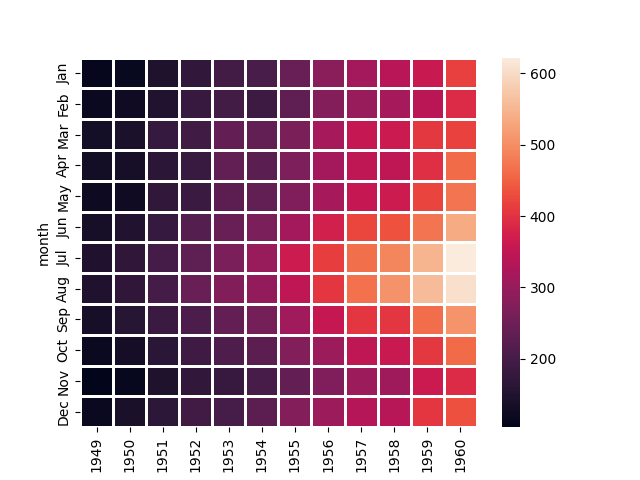
import seaborn as snsimport matplotlib.pyplot as pltdata = sns.load_dataset("flights").pivot(index="month", columns="year", values="passengers")sns.heatmap(data, linewidths=1, linecolor="white")plt.show()Adds visible grid lines between cells for clarity.
Centre the colourmap
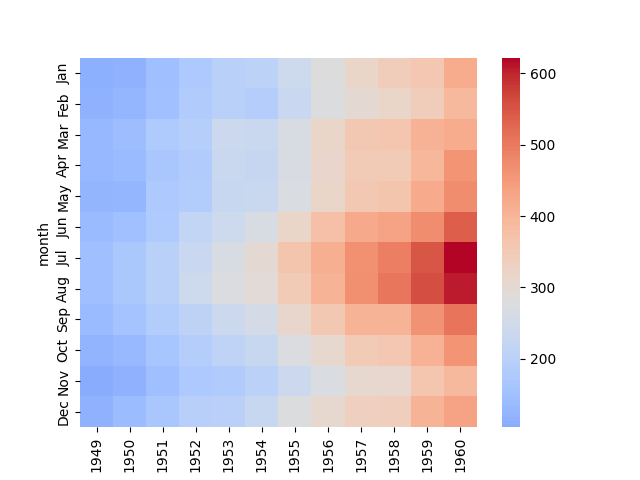
import seaborn as snsimport matplotlib.pyplot as pltdata = sns.load_dataset("flights").pivot(index="month", columns="year", values="passengers")sns.heatmap(data, cmap="coolwarm", center=data.mean().mean())plt.show()Centres colours around a specific value (e.g., the dataset mean). Useful for highlighting deviations above or below a midpoint.
Customise the colour scale range
sns.heatmap(data, vmin=100, vmax=600)Fixes the colour scale between specific min and max values. Ensures consistent comparison across multiple heatmaps.
Hide the colour bar
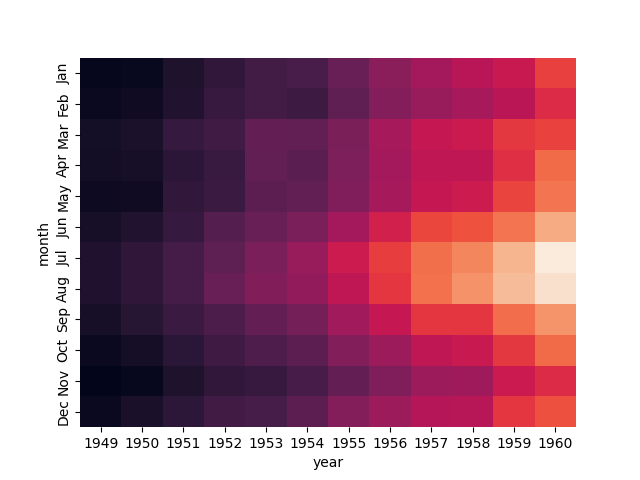
import seaborn as snsimport matplotlib.pyplot as pltdata = sns.load_dataset("flights").pivot(index="month", columns="year", values="passengers")sns.heatmap(data, cbar=False)plt.show()Removes the colour scale legend on the side.
Square cells
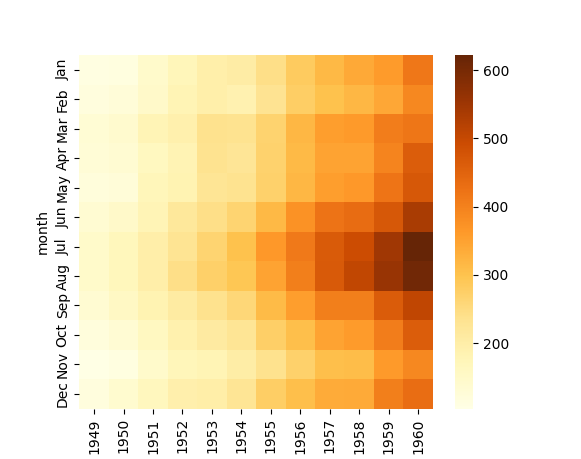
import seaborn as snsimport matplotlib.pyplot as pltdata = sns.load_dataset("flights").pivot(index="month", columns="year", values="passengers")sns.heatmap(data, square=True, cmap="YlOrBr")plt.show()Forces the cells to be square-shaped (1:1 aspect ratio). Helpful when displaying symmetric matrices (e.g., correlations).
Show only part of the matrix
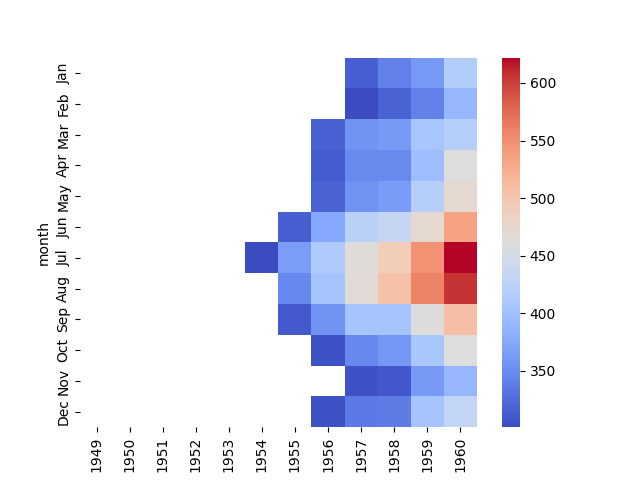
import seaborn as snsimport matplotlib.pyplot as pltdata = sns.load_dataset("flights").pivot(index="month", columns="year", values="passengers")# mask cells with value < 300mask = data < 300sns.heatmap(data, mask=mask, cmap="coolwarm")plt.show()Masks (hides) cells based on a condition. Useful for focusing on higher or lower values only.
Hide axis labels
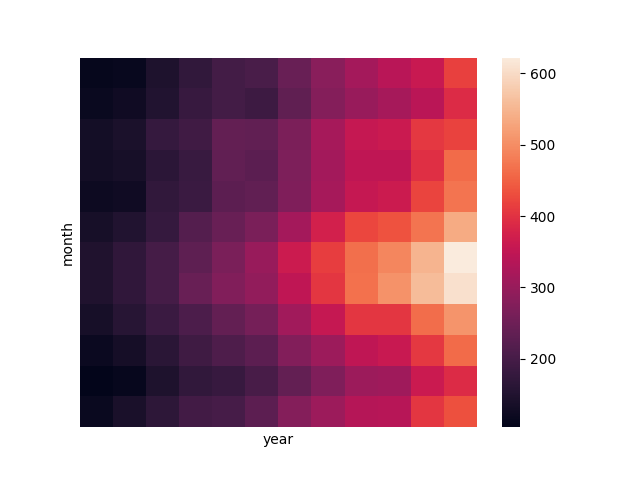
import seaborn as snsimport matplotlib.pyplot as pltdata = sns.load_dataset("flights").pivot(index="month", columns="year", values="passengers")sns.heatmap(data, xticklabels=False, yticklabels=False)plt.show()Removes axis tick labels for a cleaner look.
Correlation matrix example
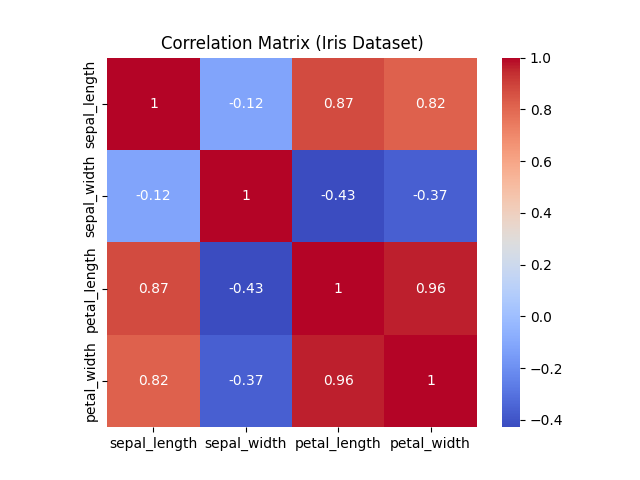
import seaborn as snsimport matplotlib.pyplot as pltiris = sns.load_dataset("iris")corr = iris.corr(numeric_only=True)sns.heatmap(corr, annot=True, cmap="coolwarm", square=True)plt.title("Correlation Matrix (Iris Dataset)")plt.show()Each cell shows the correlation between two numeric variables. Useful for identifying strong relationships or multicollinearity.
Confusion matrix example
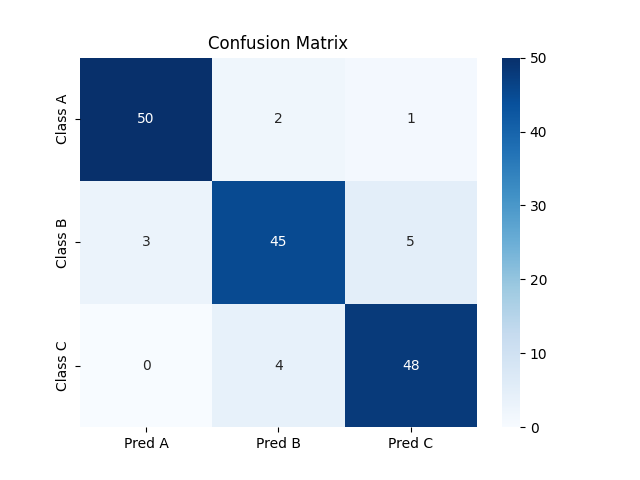
import seaborn as snsimport matplotlib.pyplot as pltimport numpy as npimport pandas as pdconf_matrix = pd.DataFrame( [[50, 2, 1], [3, 45, 5], [0, 4, 48]], index=["Class A", "Class B", "Class C"], columns=["Pred A", "Pred B", "Pred C"])sns.heatmap(conf_matrix, annot=True, fmt="d", cmap="Blues")plt.title("Confusion Matrix")plt.show()Shows true vs. predicted labels for classification models. The diagonal cells represent correct predictions.
Diverging palette example
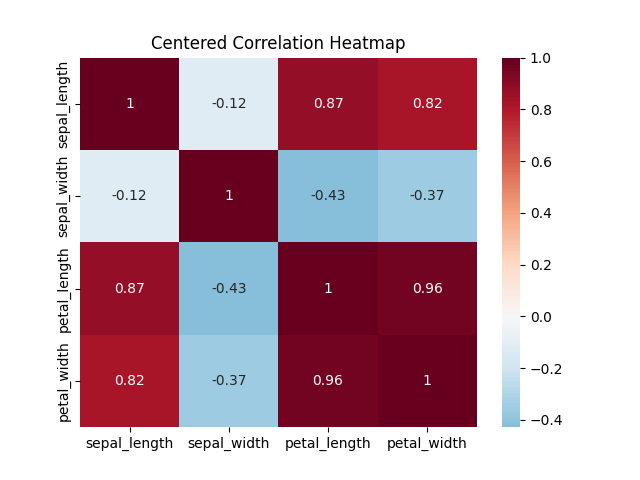
import seaborn as snsimport matplotlib.pyplot as pltiris = sns.load_dataset("iris")corr = iris.corr(numeric_only=True)sns.heatmap(corr, annot=True, cmap="RdBu_r", center=0)plt.title("Centered Correlation Heatmap")plt.show()Colours:
- Blue = negative correlations
- Red = positive correlations
- White = near zero (neutral relationship)
Horizontal colour bar
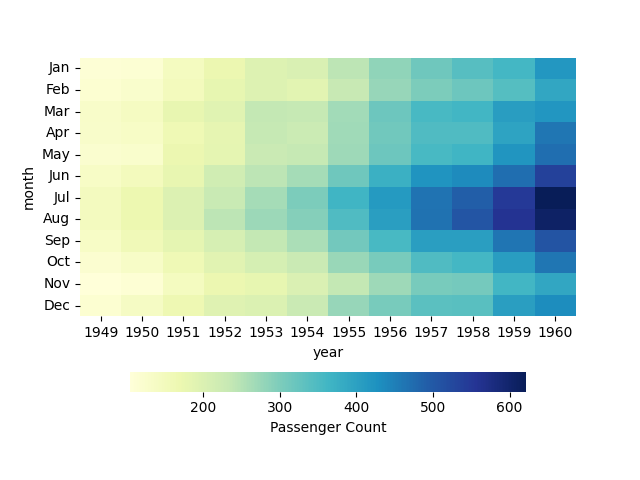
import seaborn as snsimport matplotlib.pyplot as pltdata = sns.load_dataset("flights").pivot(index="month", columns="year", values="passengers")sns.heatmap( data, cmap="YlGnBu", cbar_kws={"orientation": "horizontal", "shrink": 0.8, "label": "Passenger Count"})plt.show()Moves the color bar below the heatmap and adds a label.